
Understanding Goal Visibility

When you create a goal in ThriveSparrow, you set its visibility, which controls who can see it. Choosing the right visibility gives the right people access while keeping sensitive information secure.

Note: Goal level and visibility are separate settings. The goal level describes what the goal contributes to. Visibility controls who can see it. Learn more about goal levels
Click here to Learn more about Goal Levels
Visibility Types
There are three visibility options:
1. Public
- Who can see it: Everyone in the organization.
- Best for: Company-wide objectives and goals where transparency matters.
2. Private
- Who can see it: Only the owner, creator, and goal participants.
- Best for: Sensitive or confidential goals.
3. Restricted
- Who can see it: A selected group of people around the goal owner, based on the owner’s team and department.
- Best for: Goals that the people around the owner should see, but not the whole organization.
How Restricted access works
Default Restricted visibility access
When you choose Restricted, visibility is set automatically based on the goal level:
Goal level | Default access |
|---|---|
Individual | The owner’s manager |
Team | Everyone in the owner’s team |
Department | Everyone in the owner’s department |
Organization | Everyone in the owner’s team and department |
Customizing Restricted access
To change who has access, open the Add Participants panel and go to Invited with Restrictions. Use the Team and Dept dropdowns together to choose who can see the goal.
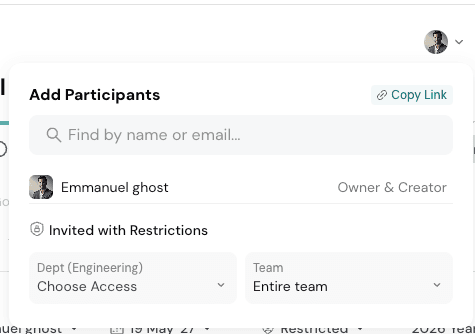
Team Dropdown
Option | Who can see the goal |
|---|---|
Manager | The owner’s direct manager |
Direct and Indirect Manager | The owner’s direct manager and all managers above them |
Peer | People who report to the same manager as the owner |
Reportees | People who report to the owner |
Entire Team | The owner’s manager, skip-level managers, peers, and reportees |
None | No team-based access |
Dept. dropdown
Option | Who can see the goal |
|---|---|
Department Head | The head of the owner’s department |
Entire Department | Everyone in the owner’s department |
None | No department-based access |
Note: For a Restricted goal, at least one of the Team or Dept dropdowns must be set to an option other than None.
Goal Access Regardless of Visibility
Goal access is also given to Admins with View All Goals/Manage All Goals permission, as per the below table.
Visibility | Goal Access Regardless of Visibility |
|---|---|
Public | Admins with the View All Goals permission |
Restricted | Admins with the View All Goals permission |
Private | No one else. Only goal participants can see their Private goal. |
Visibility Rules for Parent and Child Goals
When you link a goal to a parent goal, the parent must be at least as visible as the child:
If your goal is… | You can link it to a parent that is… |
|---|---|
Public | Public |
Restricted | Restricted or Public |
Private | Private, Restricted, or Public |
This keeps visibility consistent across linked goals and prevents accidental overexposure.
Choosing the Right Visibility
Think about who needs to track the goal’s progress, who is responsible for it, and who should stay informed. Choose the narrowest option that still gives those people access.
Should you need any help, don't hesitate to contact our support team. Happy thriving!
Was this helpful?